Dark-themed cover image with the title 'Liquid Glass Button – Optical Depth & Edge Highlighting in Figma' and a central glass-style button displaying the Figma logo and 'Liquid Glass'. Contact links are listed in the bottom left.

It’s Not Just Blur. It’s Optics

🧊 How to Create a Liquid Glass Button in Figma Simulating Apple’s Liquid Glass effect—with optical depth, not just blur.

Most glassmorphism tutorials stop at a single blur layer. But Apple’s Liquid Glass goes further, mimicking how light moves across curved glass as your device tilts and shifts.

Want to try it instantly? Grab my free Figma file (with light + dark styles)

Here’s how to build it yourself using native Figma tools.


🔍 The Formula: Two Layers of Illusion

To get the effect right, you need:

  • A lens stack that simulates curved refraction
  • Edge highlights that respond like real glass under light
 
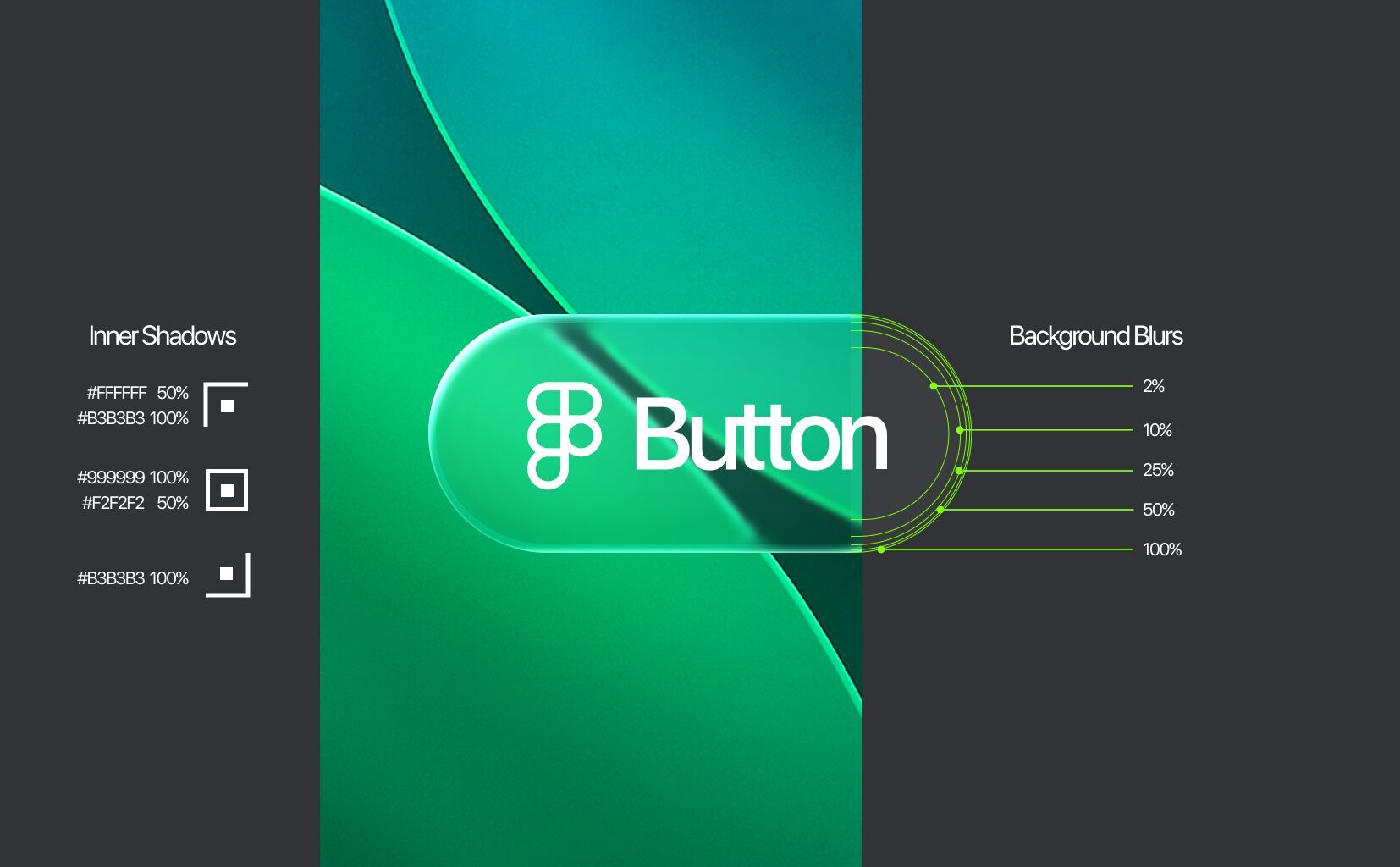
Green Liquid Glass button with instructional labels showing background blur percentages on the right and inner shadow color values with opacities on the left. Demonstrates how stacked blur layers and edge lighting simulate realistic optical depth.

🧱 Step 1: Build the Lens Stack

📍 See the right side of the diagram

This is where optical depth happens.

  • Start with your button shape
  • Duplicate it 4–6 times, scaling each one down slightly

On each layer:

  • Apply Background Blur
  • Reduce the blur incrementally (e.g. 100% → 50% → 25% → 10% → 2%)
  • Keep the fills transparent or lightly tinted

The result? A magnifying effect that simulates curved glass. Outer layers refract more, while the center stays crisp, creating depth and curvature without 3D tools.

💡 Step 2: Apply Edge Highlights

📍 See the left side of the diagram

Skip drop shadows. You’re painting with light.

  • Top-left highlight: Soft white inner shadow—simulates overhead light
  • All-around glow: Low-opacity stroke or glow to suggest thickness and edge catch
  • Bottom-right highlight: Slightly darker or more pronounced—adds contrast and weight

These aren’t fixed. On real devices, highlights shift with motion. This layering fakes that dynamic behavior in static UI, giving your button a responsive feel even when idle.

🧠 Why It Works

  • Most glass UI is flat. This technique creates volume, refraction, and physicality
  • It simulates material behavior, not just styling
  • The illusion isn’t in one layer—it’s in the interplay between blur and light

✨ Bonus Tip: Animate with Pressure

Using Smart Animate, gently scale or nudge the top blur and highlights on hover or tap. It creates a subtle pressure response, like light flexing across real glass.

🛠️ Try It Yourself

Grab the editable Figma file (with light and dark button styles): 

It’s modular, scalable, and built entirely with native tools. No plugins. No magic. Just optics. Swap colors, tweak blur intensity, or add gradients—but keep the logic. Done right, your button won’t just look interactive. It’ll feel alive.